
How Can We Help?
Business Uses of the Apple TV—Really!
Business Uses of the Apple TV—Really!
Apple TV for Digital Signage
For businesses that need to post signs, it’s easy to print something out and stick it on the wall. But that can get out of hand quickly, and once you have more than a couple of sheets of paper posted, people won’t read them. And, let’s face it, a piece of paper taped to the wall isn’t exactly eye-catching. Professional-level design and large-format printing can help, but then costs start going up quickly, and print signs aren’t easy to update. An Apple TV coupled with an inexpensive TV might be a better solution. Conceptually, a digital sign is just one or more graphics displayed on a screen, rotating as necessary—it’s a slideshow. For a one-off solution, you could add some images to Photos and display them as a slideshow or as a screen saver. If you go this route:- Make your images 1920 pixels wide by 1080 pixels high, assuming that your Apple TV’s resolution is set to 1080p in Settings > Video & Audio > Resolution. (If not, match whatever you’re using there.)
- Avoid putting content within 60 pixels of the top and bottom of the screen and within 80 pixels of either side. Content can be difficult to read near the edge, and it may be cropped due to overscanning on older TVs.
- It’s safest to set up a clean Apple ID for the Apple TV to ensure that Photos contains no personal snapshots.
- After creating images on your Mac, add them to a shared album in Photos that’s shared with the Apple TV’s dedicated Apple ID.
- On the Apple TV, open the Photos app, go into Shared, select the album, and start the slideshow or set the album as a screen saver. If Shared doesn’t appear, turn it on in Settings > Users and Accounts > Your Name > Shared Albums.
- If you use the Set As Screensaver option, you must still configure it in Settings > General > Screen Saver.
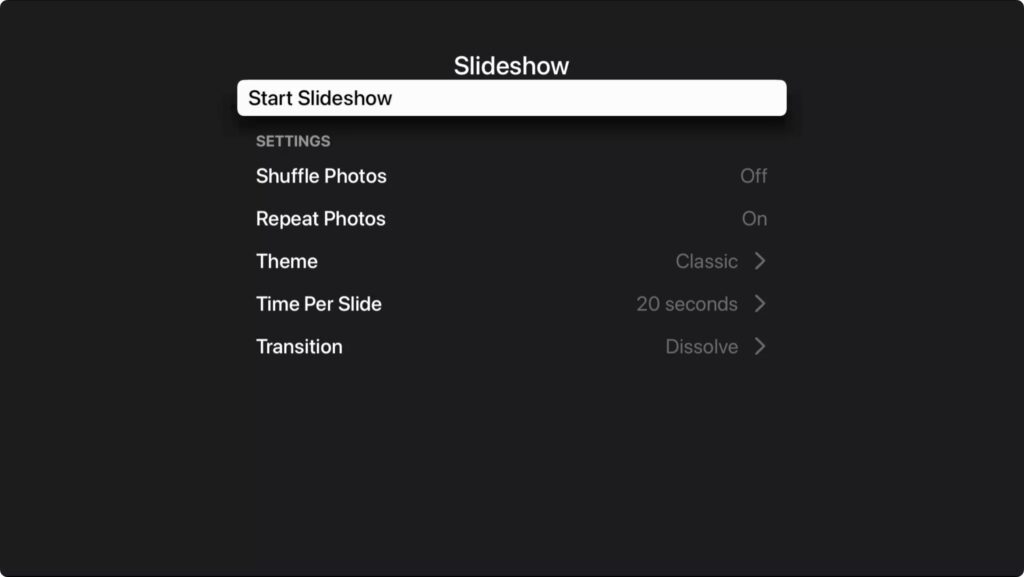
- For either the slideshow or the screen saver, set the theme to Classic for a simple, full-screen display. Make sure Repeat Photos is on (slideshow only), set the Time Per Slide to 20 seconds, and stick with a simple Transition.

Apple TV for Presentations
The other notable business capability of the Apple TV is displaying presentations on a large-screen TV via AirPlay, which lets you avoid the cabling issues and extra hardware associated with projectors. To enable that, Apple added Conference Room Display mode to tvOS to make it easier for people to connect to the Apple TV via AirPlay. First, make sure AirPlay is on in Settings > AirPlay and HomeKit. Then, in Settings > AirPlay and HomeKit > Conference Room Display, enable Conference Room Display. Once it’s on, you can:- Require a PIN on every use of AirPlay. Enable this setting if you’re concerned about someone sending inappropriate content to the TV.
- Set a custom message for the onscreen alert that encourages people to use AirPlay whenever the Apple TV is in Conference Room Display mode.
- Choose a custom photo as the background whenever the Apple TV is in Conference Room Display mode.
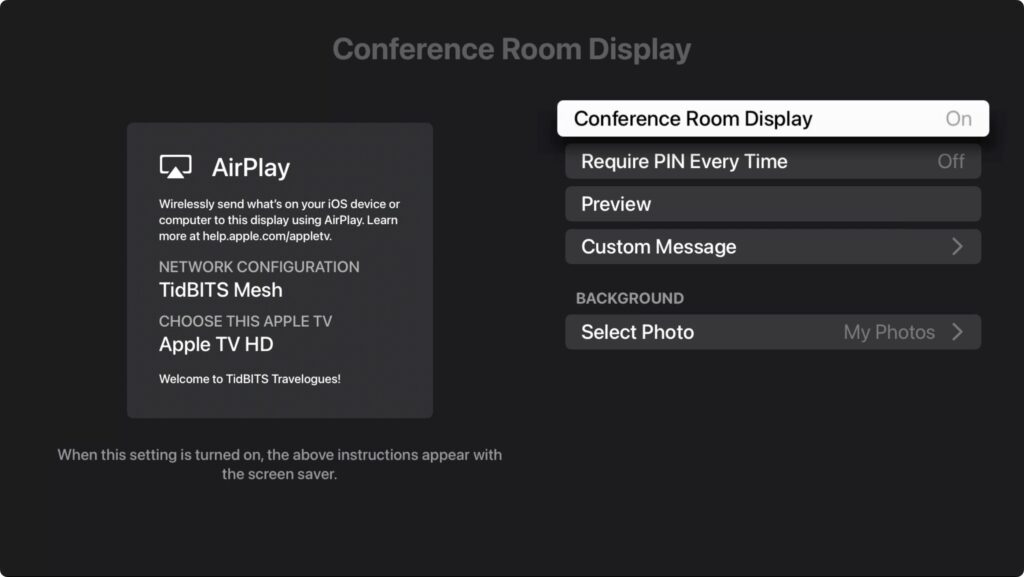 From then on, when you turn on the Apple TV, it will open to the Conference Room Display screen and alert. Note that the screen saver plays while in Conference Room Display mode, although the alert may obscure any digital signs you want to display using the screen saver.
 AirPlay is the key for sharing screens, displaying Keynote or PowerPoint presentations, or playing videos on an Apple TV in Conference Room Display mode. From a Mac, go to System Preferences > Displays and choose the Apple TV from the Add Display pop-up menu. From an iPhone or iPad, go into Control Center, tap the Screen Mirroring button, and select the Apple TV from the list.
 What if someone wants to play a presentation from a Windows PC or share its screen? The solution, though it requires advance setup, is the $17.99 AirParrot, which enables PCs to share screens with Apple TVs.
This is a high-level overview of how you can leverage an Apple TV for digital signage and presentation display—there are lots of details that may be important in your particular situation. If you need help creating an ideal configuration, don’t hesitate to ask us.
(Featured image by iStock.com/necati bahadir bermek)
What if someone wants to play a presentation from a Windows PC or share its screen? The solution, though it requires advance setup, is the $17.99 AirParrot, which enables PCs to share screens with Apple TVs.
This is a high-level overview of how you can leverage an Apple TV for digital signage and presentation display—there are lots of details that may be important in your particular situation. If you need help creating an ideal configuration, don’t hesitate to ask us.
(Featured image by iStock.com/necati bahadir bermek)