
How Can We Help?
Three Tricks for Dealing with Duplicated Contacts
Three Tricks for Dealing with Duplicated Contacts
Merge Contact Cards
Let’s say you’ve ended up with two or more contact cards for the same person in the same account. They’ll usually have the same name, but it doesn’t matter if the names are different. To merge them, which combines the data from each into a single card, select them in Contacts, and choose Card > Merge Selected Cards. You should now see just the single merged card.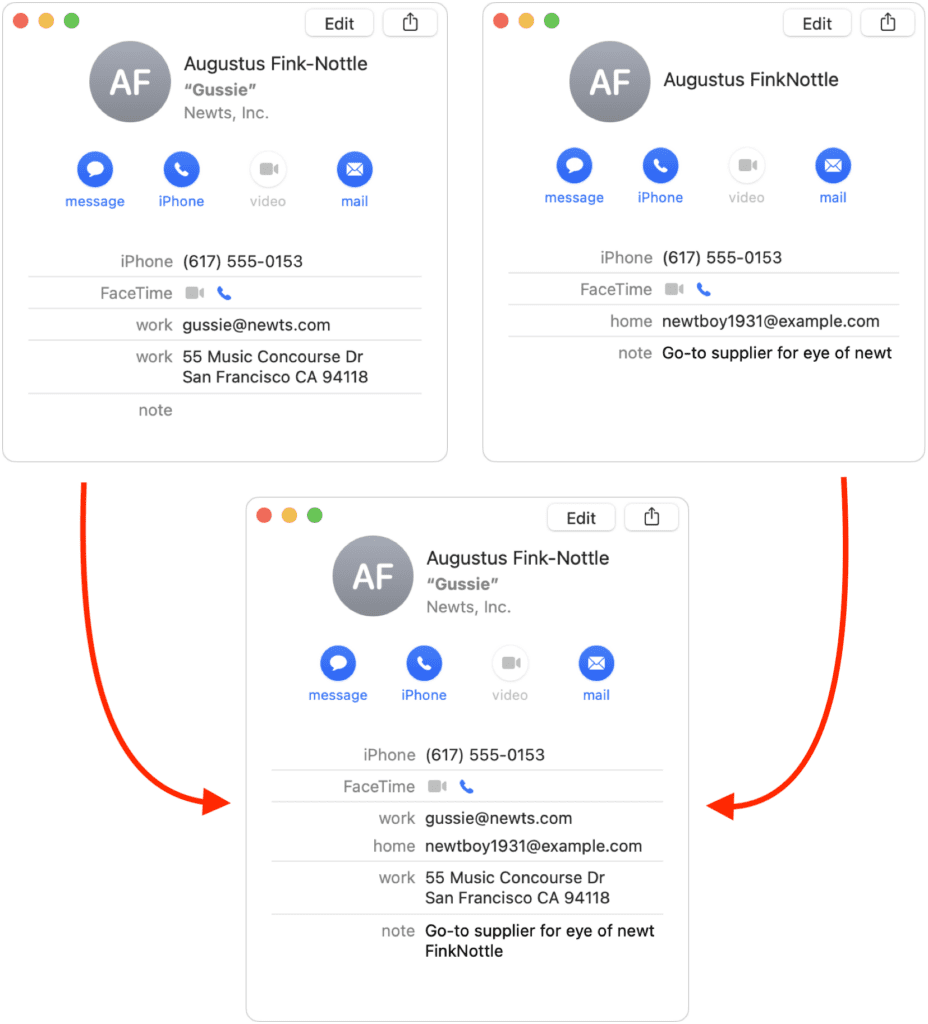 Contacts generally does a good job of identifying data that’s identical between the cards (like the iPhone numbers above), though different labels can sometimes trip it up. When there’s a conflict, Contacts creates a new entry for it. Name conflicts are added to the note field.
Look for Duplicates
Merge Selected Cards works if you have a small number of duplicates that you can identify easily. However, many people have found themselves in situations where tens or hundreds of contacts have been duplicated, often due to a hiccup in cloud syncing or importing. To help with that too-frequent occurrence, Apple added a feature that looks at all your contact cards and merges those that it determines are duplicates. It’s simple to use—just choose Card > Look for Duplicates. After Contacts scans all your cards, it puts up a dialog telling you how many cards it found. Click Merge to combine all the duplicates.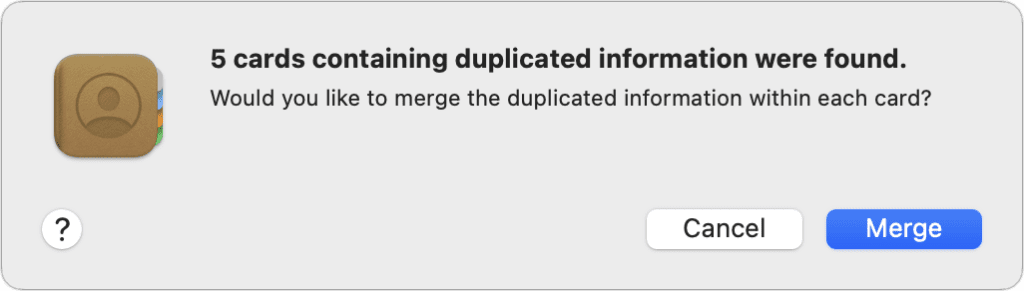 Although merging hundreds of cards can be stressful, it usually works very well, and it’s far faster and easier than the alternative, which is to select each set of duplicates manually and use Merge Selected Cards.
Link Contact Cards
The two previous solutions help when you have duplicate contacts in a single account. Equally annoying can be ending up with contact cards for the same person across multiple accounts. (Check to see what accounts are configured and enabled in Contacts > Preferences > Accounts.) At best, those duplicates will simply clutter your contact list; at worst, you might have to check multiple cards to find the right phone number or email address. Apple helps you clean up your contact list by linking cards for the same contact across different accounts. (You mustn’t link cards for different people; that can result in people receiving texts meant for others and other confusions.) In essence, this works like Merge Selected Cards, but the separate contact cards remain in their accounts, with Contacts displaying just one card with the combined information.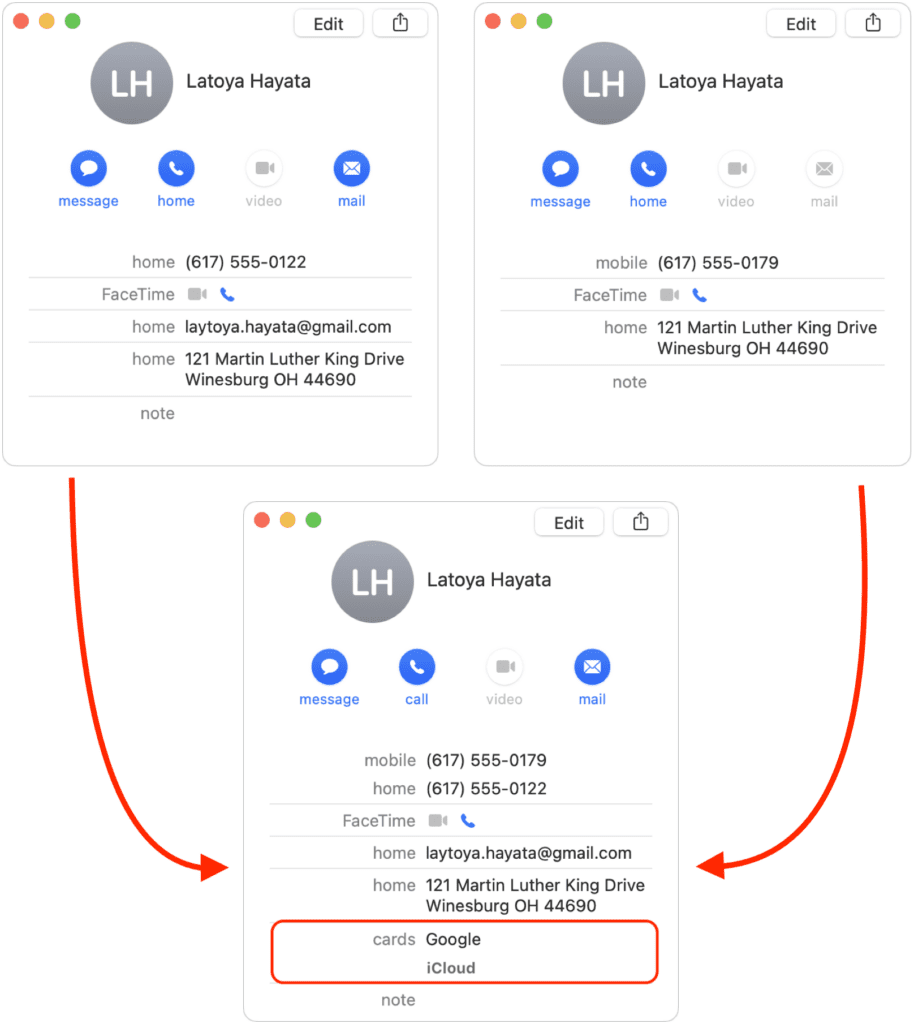 You can also link contacts using the Contacts or Phone apps on an iPhone or iPad, although the steps are much fussier than in Contacts on the Mac:
- Find a person who is replicated across multiple accounts, and view one of their contact cards.
- Tap Edit, scroll to the Linked Contacts section at the bottom of the card and tap the green + button.
- In the contact list that appears, find and tap the second card for the person—it should either be showing or require scrolling up slightly.
- Tap Link, and in the next screen, tap Done.